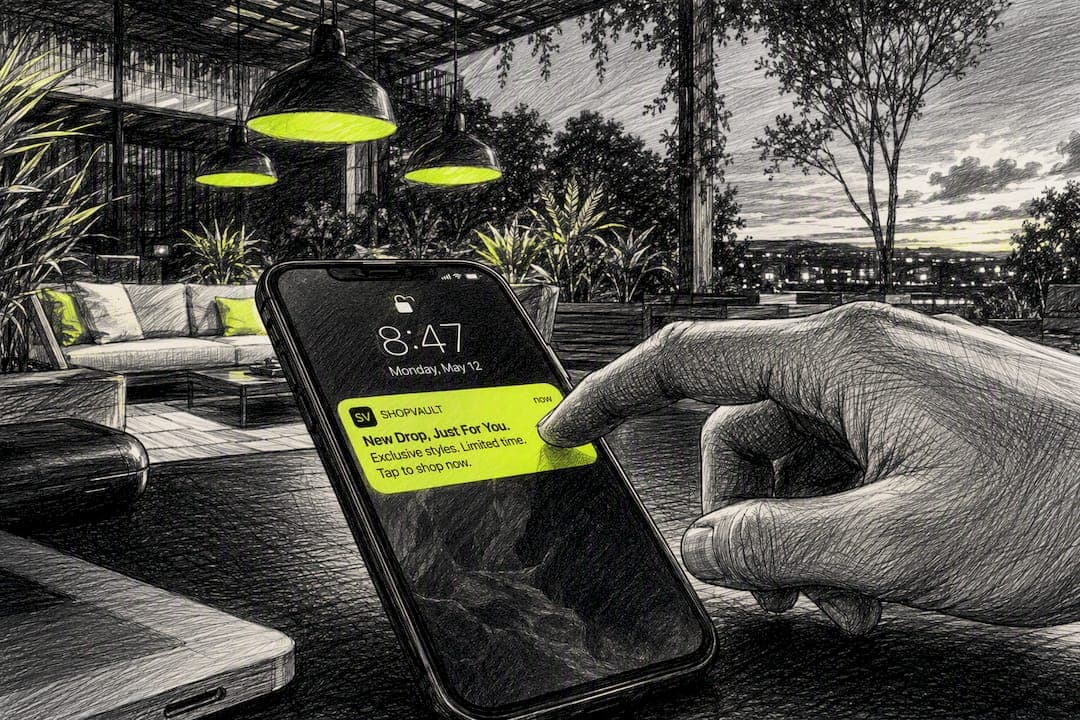
The single most effective push for a product-driven app is a hero image, a clear call to action, and nothing else competing for attention. Text-only pushes still work for reminders, but rich media pushes with higher engagement for product moments, according to Pushwoosh's e-commerce guidance. To make one render, you need three things lined up: the correct FCM image field for each platform, and mutable-content: 1 on iOS so the Notification Service Extension can fetch the image, and a file under platform size limits served over HTTPS.
- Lead with one product photo, not a collage.
- Set
android.notification.image,apns.fcm_options.image, and the webpush image header. - Compress before you send, and host on a CDN so the fetch never becomes the bottleneck.
Pro Tip: Skip the fallback image entirely if you can't guarantee a fast load. A clean text-only push beats a broken image placeholder every time.
Key Takeaways
A push notification image only converts when the design and the payload work together: one focal image, a clear offer, HTTPS hosting, and the correct platform fields.
| Point | Details |
|---|---|
| Start simple | Use one product or hero image with a single clear call to action before testing carousels or GIFs. |
| Set the iOS flag | Include mutable-content: 1 and build a Notification Service Extension, or the image never downloads. |
| Respect size limits | Keep images under roughly 1MB for Android and 300KB for web composers; compress with WebP where possible. |
| Always ship a fallback | Write title and body copy that carries the full offer in case the image fails to load. |
| Pre-generate creatives | Render product-card images ahead of send time on a CDN to cut down on render failures. |
Table of Contents
- Which Types of Push Notification Images Should You Use?
- Platform Support, Limits, and the Engineering Steps That Actually Matter
- Design Rules That Make Push Images Convert
- Implementation Checklist: Payload Examples for FCM, APNs, and Web
- How to Optimize Notification Visuals for Speed and Reliability
- Testing and Troubleshooting Your Image Pushes
- How StorePush Uses Image Pushes to Recover Carts
- Where to Learn More About Push Image Standards
- What Marketers and Developers Both Get Wrong About Push Images
- Sources
Which Types of Push Notification Images Should You Use?
Not every campaign needs the same visual treatment. Matching the image type to the marketing moment keeps your notification service extension lean and your open rates healthy.
- Site or app icon: shows automatically on most platforms and reinforces brand recognition. Non-negotiable baseline, even without a custom image.
- Thumbnail: a single product photo for cart or browse abandonment. This is your workhorse for one-to-one recovery messages.
- Hero or background image: bigger, bolder creative for product launches, flash sales, or seasonal pushes where you want the notification to feel like an event.
- Carousel, grid, or GIF: use when showcasing multiple products or a limited-time countdown, but expect higher compatibility trade-offs and larger payloads.
Whatever type you choose, write your title and body copy so the offer is clear even if the image never loads.
Platform Support, Limits, and the Engineering Steps That Actually Matter
Each platform treats push notification images differently, and skipping a step means the image silently fails while everything else fires fine.
On iOS, you must add a Notification Service Extension and set mutable-content: 1 in the payload. Without that flag, Apple's push service never triggers the extension and no image ever downloads. The image URL needs HTTPS and a valid file extension, or Apple's APNs system rejects it outright.
On Android, FCM handles this more directly through android.notification.image, which triggers BigPictureStyle rendering. Keep images under roughly 1MB. Larger files risk getting trimmed or dropped, especially on slower connections.
Web push on Chromium browsers (Chrome, Edge, Opera) supports images and up to two action buttons. Firefox and Safari lag behind here, with inconsistent or absent image support, which is part of why web push on iOS still trips up so many e-commerce teams.
| Platform | Image trigger field | Practical size limit |
|---|---|---|
| iOS (APNs) | mutable-content: 1 + Notification Service Extension | Well under 10MB max; smaller loads faster |
| Android (FCM) | android.notification.image | ~1MB guidance |
| Web (Chromium) | webpush.headers.image | Composer tools often cap at 300KB |
OEM skins on Android (Samsung, Xiaomi) can also crop or resize images differently than stock Android, so test on real devices, not just emulators.
Design Rules That Make Push Images Convert
A push notification image gets maybe half a second of attention before a shopper swipes it away. That means every design choice has to earn its place.
- Pick one focal subject. A single product, centered, beats a grid every time unless you're deliberately sending a carousel.
- Design for the crop. Most platforms show a thumbnail-sized crop before expansion, so keep your subject and any text inside safe margins, not at the edges.
- Use high-contrast overlays. If you add text on the image, it needs to survive being shrunk to a 1 inch square on a lock screen.
- Be specific. "Your cart is waiting" underperforms "Your Nike Air Max, $89, ships free today." Concrete beats vague, always.
- Reserve GIFs for the right vertical. Fashion and beauty brands often see a lift from movement, but GIFs render inconsistently across OEMs, so test before scaling.
Pro Tip: Treat your push image like a billboard on a highway, not a magazine ad. The viewer has one second and one glance, not a leisurely read.
Implementation Checklist: Payload Examples for FCM, APNs, and Web
Here's the actual payload structure, adapted from Firebase's cross-platform messaging docs, that developers can copy and adjust.
A cross-platform FCM message body looks like this in a Node.js request:
{
  "message": {

    "android": { "notification": { "image": "https://cdn.yoursite.com/cart-item.webp" } },
    "apns": {
      "payload": { "aps": { "mutable-content": 1 } },
      "fcm_options": { "image": "https://cdn.yoursite.com/cart-item.webp" }
    },
    "webpush": { "headers": { "image": "https://cdn.yoursite.com/cart-item.webp" } }
  }
}
Each field targets a different rendering path: android.notification.image for Android's BigPictureStyle, apns.fcm_options.image paired with mutable-content for iOS, and the webpush header for browsers.
On iOS, your Notification Service Extension code needs to download the image, verify it loaded, and attach it to the notification content before the OS-imposed time window closes. Developer discussions on Stack Overflow document the most common failure: images that load slowly or return a non-200 status silently fail with no visible error.
| Common mistake | What actually happens |
|---|---|
| HTTP instead of HTTPS URL | APNs rejects the payload |
| Missing file extension | Image fails to attach on iOS |
| Slow or uncached CDN | Extension times out before download completes |
| No fallback text | Notification looks broken if image never loads |
How to Optimize Notification Visuals for Speed and Reliability
Compression and hosting decide whether your image push arrives instantly or lags behind the tap. Use WebP wherever platform support allows it. It typically produces a smaller file than JPEG or PNG at equivalent visual quality, which matters when Android guidance caps images around 1MB and some composer tools cap uploads at 300KB.
- Target under 300KB for web and composer uploads, and under 1MB for Android.
- iOS technically allows up to 10MB, but smaller files still load faster on weak connections.
- Pre-generate product-card images ahead of send time instead of rendering them on the fly. A server-side, headless-browser rendering approach that pre-warms images on a CDN cuts down on render failures at send time.
- Double-check that your
Content-Typeheader and file extension actually match the image format. A mismatched header is a quiet way to break rendering on some clients.
Testing and Troubleshooting Your Image Pushes
An image push that looks perfect in your staging environment can still fail silently in production. Build a test matrix before you scale a campaign.
- Test across iOS and Android, at least two OS versions back, and both Chromium and non-Chromium browsers.
- Test foreground and background app states separately. Rendering paths differ, and a push that displays fine in foreground can misfire in background.
- Log render failures inside your Notification Service Extension and track missing-image rates as a metric in your analytics dashboard, not just an occasional bug report.
- Always ship a fallback: title and body text that carry the full offer, plus a deep link into a pre-filled cart or landing page.
- Track delivery-to-render time alongside render success ratio, then A/B test creative templates against each other, not just against a text-only control.
How StorePush Uses Image Pushes to Recover Carts
StorePush builds its entire recovery flow around this same principle: a rich, specific image push beats a generic reminder. StorePush uses native iOS App Clips to re-engage shoppers who leave a Shopify, WooCommerce, or BigCommerce store without ever collecting an email or phone number.
- Product-card pushes recreate the exact item left in a shopper's cart, with price and image intact.
- Timer creatives add urgency to flash sales without needing a separate app install.
- Deep links route directly into a pre-filled checkout, so the tap and the purchase are one motion, not three.
You can see the technical flow and case studies on the StorePush blog, including a detailed walkthrough of cart recovery without emails or phone numbers. For teams also tracking how rich push affects overall app revenue, a tool like apppricer can help connect CTR lift to actual dollar attribution.
If you're ready to see this running on your own storefront, book a StorePush demo and walk through the setup with the team.
Where to Learn More About Push Image Standards
Start with Firebase's cross-platform image guidance and the iOS-specific image setup docs. For sourcing legal creative assets, check Creative Commons licensing terms before reusing third-party photos.
What Marketers and Developers Both Get Wrong About Push Images
Most advice on this topic treats design and engineering as separate conversations, one for the marketing team's Figma file and one for the developer's Xcode project. That split is the actual problem. A gorgeous hero image with no mutable-content flag is invisible. A perfectly configured payload pointing at a slow, uncompressed JPEG loads too late to matter.
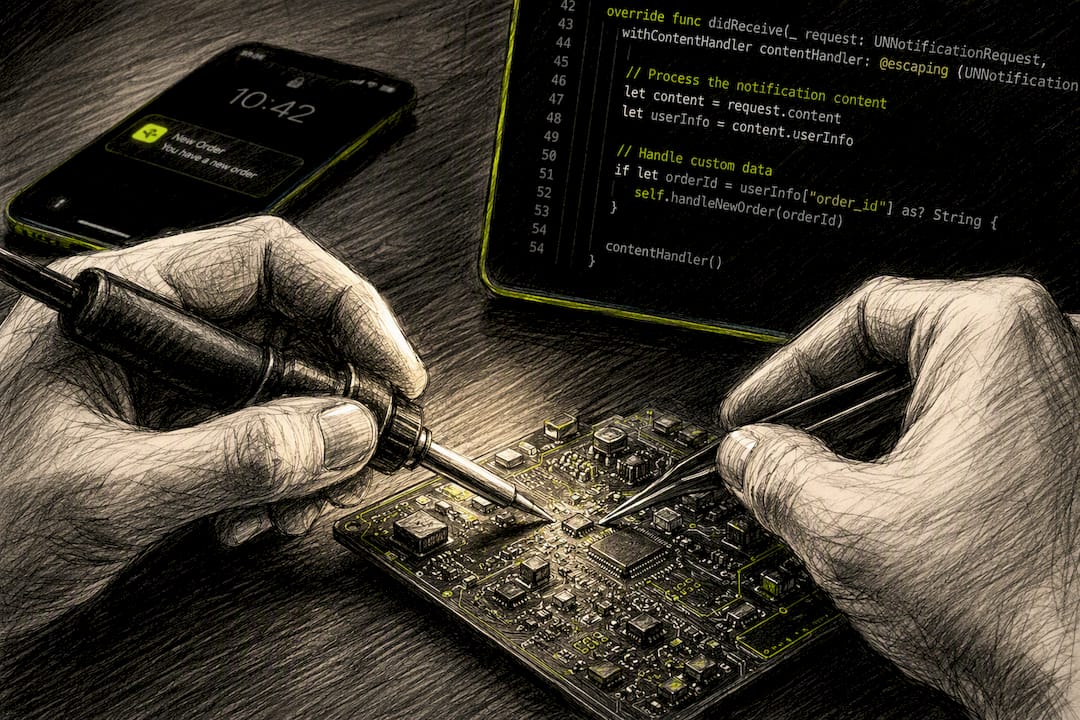
The conventional wisdom oversells carousels and GIFs as the sophisticated choice, when a single well-cropped product image with a specific price and a working deep link usually outperforms them for straightforward cart recovery. Motion and multi-image formats earn their complexity in fashion, beauty, and browse-heavy verticals, not as a default.
If you take one thing from this, prioritize the fallback text before you chase visual polish. Images fail to render more often than most teams admit, whether from a slow CDN, an OEM quirk, or a missed file extension. A notification that reads clearly with no image at all is the real safety net, and it costs nothing to write well.
Sources
- Firebase Cloud Messaging — Send images to iOS
- Push notifications strategy for e-commerce | Pushwoosh
- Creative Commons Attribution 4.0 International (CC BY 4.0)